

- Introduction
- Table of Contents
- Understanding PC Hardware: Core Components and How They Affect Performance
- CPU (Central Processing Unit)
- GPU (Graphics Processing Unit)
- Motherboard
- Memory (RAM)
- Storage (HDD, SSD, NVMe)
- Power Supply Unit (PSU)
- Cooling (Air vs. Liquid)
- Case and Build Considerations
- Laptop Buying Guide: Portability, Performance, Battery Life, and Durability
- Operating Systems Compared: Windows vs. macOS vs. Linux
- Accessories That Improve Comfort and Productivity
- Peripherals for Daily Productivity
- Audio and Video for Hybrid Work
- Storage and Backup Accessories
- Ergonomics and Comfort
- Productivity Strategies: Software, Workflows, and Optimization Tips
- Time Management and Task Systems
- Workspace Organization
- Automation and Scripting
- Collaboration Tools
- Performance Optimization Tips
- Maintenance, Upgrades, and Troubleshooting
- Case Studies and Examples
- Case Study 1 — Content Creator Desktop
- Case Study 2 — Remote Professional’s Laptop Setup
- Case Study 3 — Developer’s Linux Workstation
- FAQs
Ultimate Guide to PC Hardware, Laptops, Operating Systems, Accessories, and Productivity
Keywords: PC hardware, laptops, Windows, macOS, Linux, accessories, productivity
Discover how to choose the right PC hardware and laptop, compare Windows, macOS, and Linux, pick essential accessories, and adopt productivity workflows that maximize performance and ROI.
Introduction
Choosing the right computing setup is both a technical and a practical decision. Whether you’re building a desktop for gaming or content creation, selecting a laptop for remote work, or deciding which operating system best fits your workflow, the choices you make affect speed, reliability, security, and productivity. This guide walks through modern PC hardware components, laptop buying strategies, an unbiased comparison of Windows, macOS, and Linux, must-have accessories, and proven productivity techniques. Readers will leave with concrete recommendations, buying checklists, optimization tips, and links to authoritative resources so they can build or buy a system that matches their needs and budget.
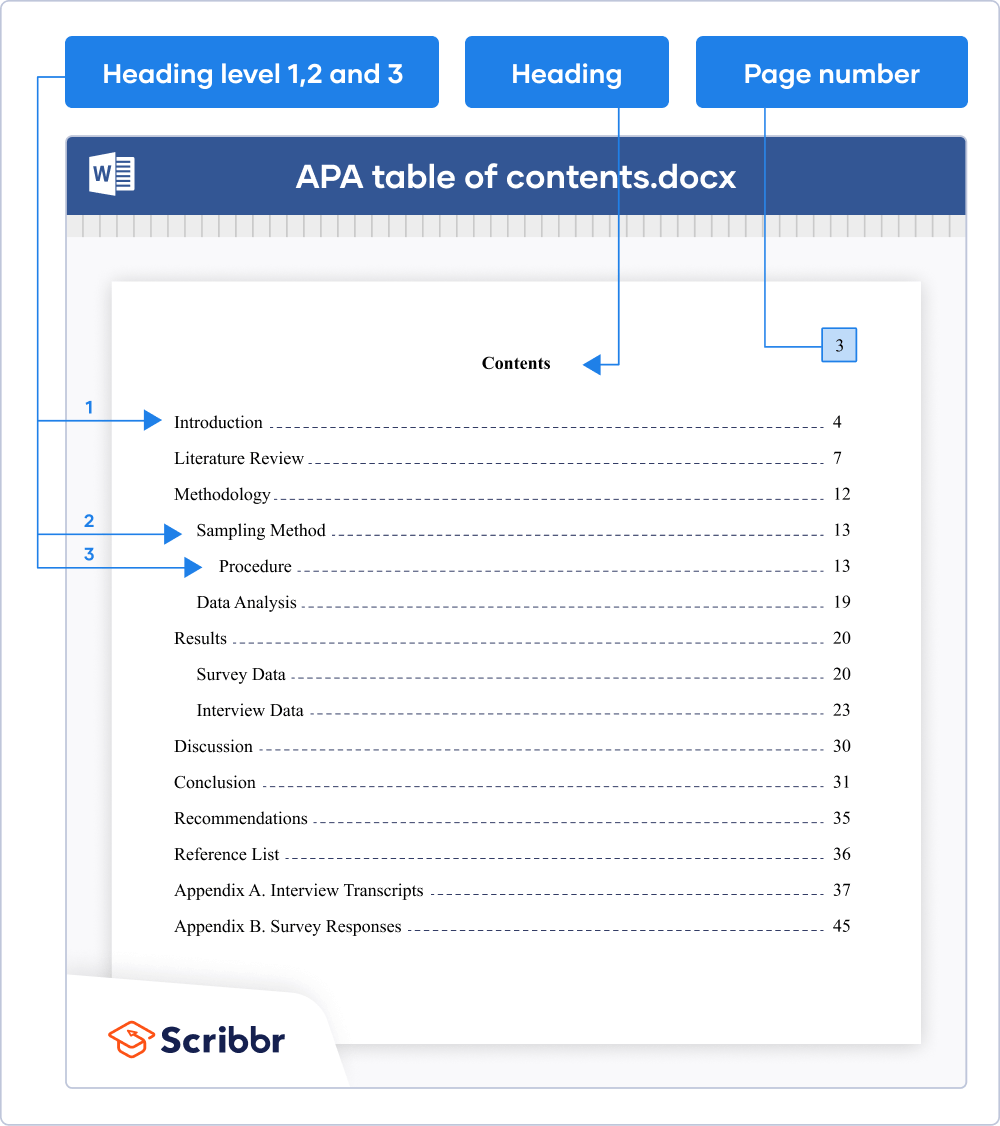
Table of Contents
– Understanding PC Hardware: Core Components and How They Affect Performance
- Laptop Buying Guide: Portability, Performance, Battery Life, and Durability
- Operating Systems Compared: Windows vs. macOS vs. Linux
- Accessories That Improve Comfort and Productivity
- Productivity Strategies: Software, Workflows, and Optimization Tips
- Maintenance, Upgrades, and Troubleshooting
- FAQs
- Conclusion and Next Steps
- Desktop: Choose AMD Ryzen (e.g., Ryzen 5/7/9) or Intel Core (i5/i7/i9) based on budget and workload. More cores benefit parallel workloads (rendering, VM hosting); higher clock speeds favor single-threaded tasks (gaming).
- Laptop: Look at TDP and boost behavior—ULV chips (e.g., Intel U-series, Ryzen U-series) optimize battery life; H-series provide higher sustained performance but with reduced battery life and higher heat.
- Recommendation: For mixed productivity and light content creation, a 6–8 core CPU (Ryzen 5/7 or Intel i5/i7) provides the best value. For heavy content creation or professional use, 8–16 cores are preferable.
- Integrated GPUs (Intel Iris Xe, AMD Vega) are sufficient for web, office work, and media playback.
- Discrete GPUs (NVIDIA RTX, AMD Radeon) are required for gaming at high settings, GPU rendering, and hardware-accelerated video editing.
- Recommendation: For 1080p gaming and video editing, mid-range RTX 4060/4070 or equivalent; for 4K or heavy GPU compute, step up to RTX 4080/4090 or AMD RX 7900-series.
- Consider form factor (ATX, mATX, ITX), number/type of PCIe slots, M.2 slots for NVMe SSDs, and build quality (VRMs) relevant to overclocking or sustained workloads.
- Recommendation: For mainstream users, a mid-range board with robust VRMs and PCIe 4.0/5.0 support is future-proof enough.
- Capacity: 8 GB is minimum for basic use; 16 GB is the sweet spot for most users; 32 GB+ for content creators, developers using VMs, or heavy multitaskers.
- Speed and latency: Modern DDR4/DDR5 speeds improve certain workloads; prioritize capacity first, then speed.
- NVMe SSDs (PCIe 3.0/4.0/5.0) provide the fastest read/write speeds and substantially improve responsiveness.
- Use an SSD for OS and applications; add a larger HDD for mass media storage if needed.
- Recommendation: 500 GB–1 TB NVMe for OS + apps; add a 2 TB HDD or another SSD for bulk files.
- Pick from reputable brands with 80 PLUS Bronze/Gold rating. Calculate wattage with headroom (20–30%) for future upgrades.
- Modular PSUs improve cable management.
- High-performance builds benefit from AIO liquid coolers or high-end air coolers; standard systems perform well with good tower air coolers.
- Ensure case airflow: intake and exhaust fans, dust filters, and cable management.
- Content creation: 15–16″ or larger, discrete GPU, 32 GB RAM recommended for heavy editing.
- Gaming: prioritize GPU and cooling; 144 Hz+ displays, good thermals.
- Software development: prioritize CPU cores, RAM (16–32 GB), and fast storage; consider a 16:10 or 3:2 screen for vertical space.
- Keyboard and trackpad: comfortable travel and tactile feedback; large precision trackpad improves productivity.
- Port selection: Thunderbolt/USB-C, HDMI, SD card slot, ethernet (if needed) — critical for docking and external displays.
- Battery: real-world battery life varies—look for reviews with real testing; consider fast charging support.
- Serviceability: ability to upgrade RAM/SSD, battery replacement—important for long-term value.
- Mainstream ($700–$1,300): Balanced performance and portability; good for professionals and light creators.
- Premium ($1,300+): High-end ultrabooks and creator laptops—strong CPUs, discrete GPUs, high-quality displays.
- Gaming ($1,200+): High-refresh displays, powerful GPUs, robust cooling—trades battery life for performance.
- Widest hardware and software compatibility—games, enterprise apps, legacy programs.
- Extensive driver and peripheral support; large ecosystem of utilities and productivity tools.
- Good support for touchscreens and hybrid devices.
- Higher attack surface—requires proactive security measures (antivirus, updates).
- Occasional driver and update regressions; fragmentation across hardware vendors.
- Tight hardware/software integration—consistent performance and battery life, especially on Apple Silicon (M1/M2/M3).
- Polished UI and strong ecosystem for creatives (Final Cut Pro, Logic Pro), seamless continuity with other Apple devices.
- Lower malware prevalence and strong privacy features.
- Limited hardware choices and upgradeability; higher upfront cost.
- Some niche professional software Windows-only (though virtualization or cloud options exist).
- Highly customizable, excellent for developers, servers, and privacy-conscious users.
- Open-source, lightweight distributions available for older hardware.
- Strong package management, scripting, and remote server workflows.
- Variable commercial software support—some apps require workarounds or virtualization.
- Hardware driver support can lag for new GPUs, Wi-Fi chips, or specialized peripherals.
- Need specific Windows-only apps or games: choose Windows.
- Value battery life, polished UX, and creative apps: choose macOS on Apple Silicon.
- Prefer customization, security, and open-source tools: choose Linux (Ubuntu, Fedora, or a distro suited to your skill level).
- Mice and Trackpads: choose ergonomic shapes or high-DPI sensors for precision. Multi-device Bluetooth mice increase flexibility.
- Monitors: 24–27″ 1080p for general use; 27″ QHD or 32″ 4K for content creation. Look for IPS or VA panels for color accuracy and wide viewing angles.
- Docks and Hubs: Thunderbolt/USB-C docks add multiple display outputs, Ethernet, and charging through a single cable—ideal for laptop users.
- Microphones: USB condenser or dynamic mics improve call and recording quality. Use pop filters and boom arms for cleaner audio.
- Headsets: noise-cancelling headsets help concentration in shared spaces.
- Network Attached Storage (NAS) for centralized backups and media serving; choose RAID and UPS support for redundancy and uptime.
- Cloud backup services for offsite redundancy—combine local and cloud backups for best resilience.
- Standing desks or convertible sit-stand setups improve health over long sessions.
- Wrist rests, anti-fatigue mats, and proper chair support reduce strain.
- Adopt time-blocking or the Pomodoro Technique to structure focus sessions and breaks.
- Review weekly: clear backlog, reprioritize, and plan sprints for focused work.
- Use virtual desktops and window management tools (PowerToys FancyZones on Windows, Mission Control on macOS, i3/Wayland tiling on Linux) to minimize context switching.
- Use workflow tools like Zapier, IFTTT, or self-hosted tools (n8n, Huginn) to connect services and reduce manual work.
- Use version control (Git) and code review workflows for code collaboration; apply branching strategies and CI/CD for reliability.
- Use SSDs for the OS and frequently used apps; periodically run TRIM and avoid near-full SSD capacity for best performance.
- Disable unnecessary startup apps and background services; on Windows use Task Manager / Startup, on macOS use Login Items, and on Linux manage systemd services.
- For laptops, use power profiles (Balanced, Performance, Battery Saver) to tune thermals and battery life depending on need.
- Monitor storage health with SMART tools and replace drives showing reallocated sectors or high error rates.
- Keep system images and incremental backups; test restores periodically.
- Laptop: check serviceability—many modern laptops solder RAM; prefer models with upgradeable SSDs and batteries if long-term upgradeability matters.
- Boot problems: test boot media, reset BIOS/UEFI to defaults, boot into safe mode, or use recovery environments.
- Performance degradation: check for thermal throttling, malware scans, disk usage, and runaway processes.
- Network issues: reboot router, verify drivers, check DNS settings and use ping/traceroute to isolate problems.
- CPU: AMD Ryzen 9 7900X or Intel Core i9 13th/14th gen (12+ cores)
- GPU: NVIDIA RTX 4080 for CUDA-accelerated rendering
- RAM: 64 GB DDR5
- Storage: 2 TB NVMe (OS/Projects) + 4 TB HDD (archive)
- Laptop: 14″ ultrabook with Ryzen 7 or Intel Core i7 U-series, 16 GB RAM, 512 GB NVMe
- Accessories: USB-C dock, 27″ QHD monitor, external webcam, noise-cancelling headset
- OS: Windows 11 Pro or macOS (depending on preference)
- CPU: AMD Ryzen 9 7950X (16 cores)
- RAM: 64 GB DDR5
- Storage: 1 TB NVMe (OS + code) + 2 TB NVMe (VMs/containers)
- OS: Ubuntu LTS or Fedora Workstation
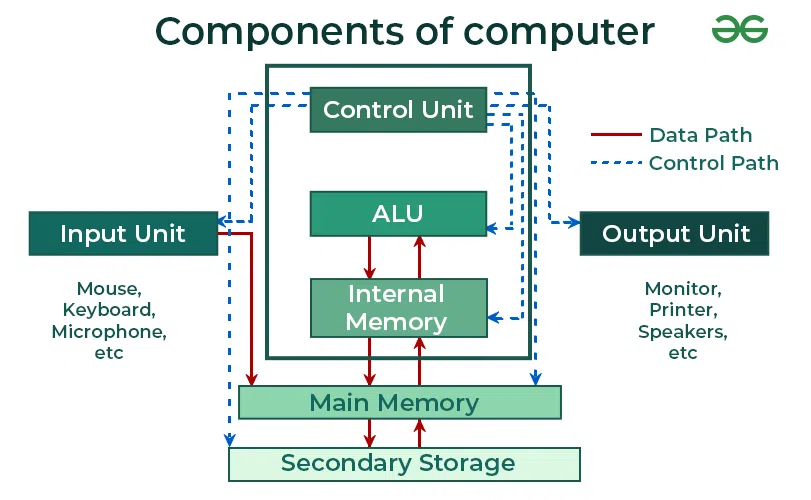
Understanding PC Hardware: Core Components and How They Affect Performance
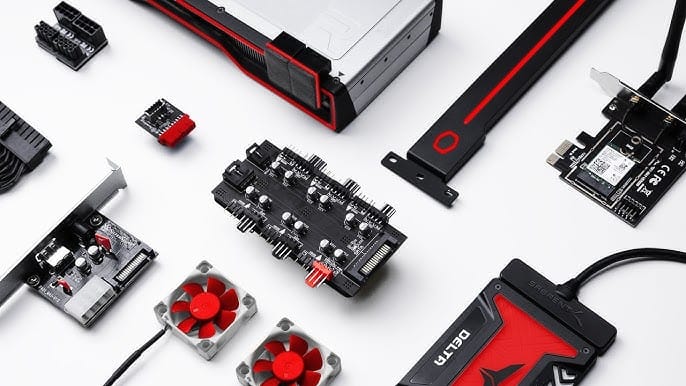
When planning a desktop build or evaluating a prebuilt machine, know how each core component influences performance and user experience. Below is a breakdown of the essential parts with practical buying guidance.
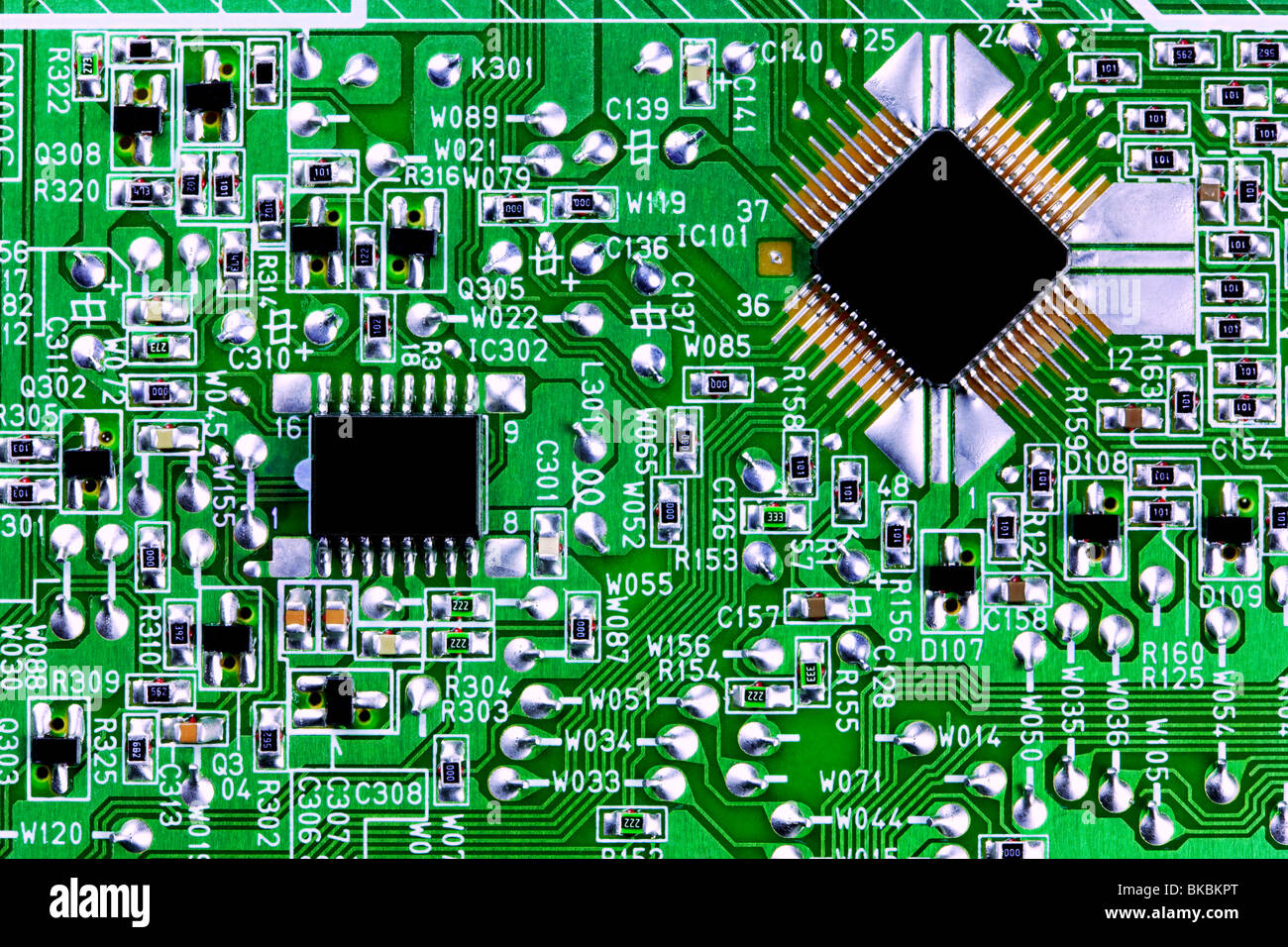
CPU (Central Processing Unit)
The CPU is the brain of the system. It affects general responsiveness, multitasking, and tasks like video encoding and compiling code.

GPU (Graphics Processing Unit)
Essential for gaming, 3D work, GPU-accelerated rendering, and some AI tasks.

Motherboard
Choose a motherboard that supports the CPU socket, memory speed, expansion needs, and I/O requirements.
Memory (RAM)
RAM affects multitasking and large datasets. Speed and capacity both matter.
Storage (HDD, SSD, NVMe)
Storage choice impacts boot times, application launch speeds, and load times for large files.
Power Supply Unit (PSU)
Choose a quality, efficient PSU to ensure stable operation.
Cooling (Air vs. Liquid)
Cooling affects thermal throttling and noise levels.
Case and Build Considerations
Form factor, airflow, noise, and aesthetics matter. For quiet, choose sound-dampened cases; for airflow, open-mesh designs excel.
Laptop Buying Guide: Portability, Performance, Battery Life, and Durability
Laptops are compromises between performance, portability, and battery life. Define your priority to select the best model.
Define Your Use Case
– Daily productivity and web: ultraportables (13–14″), lightweight, 8–16 GB RAM, SSD.
Key Laptop Features to Evaluate
– Display: resolution (FHD vs. QHD vs. 4K), panel type (IPS vs. OLED), refresh rate, color accuracy (sRGB/AdobeRGB coverage).
Recommended Laptop Tiers
– Budget (under $700): Chromebooks or entry-level Windows laptops with Intel/AMD U-series—best for students and light use.
Operating Systems Compared: Windows vs. macOS vs. Linux
Selecting an OS shapes software availability, security posture, customization, and long-term support. Below is a pragmatic, unbiased comparison focused on real user needs.
Windows
Strengths:
Weaknesses:
Best for: gamers, enterprise/Windows-dependent software, users needing maximum software compatibility.
macOS
Strengths:
Weaknesses:
Best for: creators, professionals invested in Apple ecosystem, users who value integration and long-term support.
Linux
Strengths:
Weaknesses:
Best for: developers, system administrators, power users, and those who prefer open-source ecosystems.
Choosing the Right OS
Decide based on software needs, hardware, and personal workflow:
Accessories That Improve Comfort and Productivity
Accessories transform a good system into a great workspace. Prioritize ergonomics, connectivity, and workflow tools.
Peripherals for Daily Productivity
– Keyboards: mechanical (Cherry MX or equivalent) for typing feel; low-profile scissor switches for portability. Consider an ergonomic split keyboard if you type for long hours.
Audio and Video for Hybrid Work
– Webcams: 1080p or higher; consider external webcams for better low-light performance.
Storage and Backup Accessories
– External SSDs for fast transfers and portability (NVMe in an external enclosure for max speed).
Ergonomics and Comfort
– Adjustable monitor stands or VESA arms to position displays at eye level.
Productivity Strategies: Software, Workflows, and Optimization Tips
Hardware and OS choices matter, but how you work often has a larger impact on productivity. Adopt tools and practices that scale with your needs.
Time Management and Task Systems
– Use a task manager (Todoist, Microsoft To Do, Things, or a self-hosted solution) with projects, priorities, and due dates.
Workspace Organization
– Single source of truth for documents: cloud storage or centralized NAS. Avoid scattered files across desktops and devices.
Automation and Scripting
– Automate repetitive tasks with scripts (PowerShell on Windows, AppleScript/Shortcuts on macOS, Bash/Python on Linux).
Collaboration Tools
– Standardize on communication platforms (Slack/Microsoft Teams/Discord) and document collaboration (Google Workspace, Microsoft 365, Notion).
Performance Optimization Tips
– Keep OS and drivers up to date but stagger major updates to reduce disruption.
Maintenance, Upgrades, and Troubleshooting
Plan for longevity: maintain hardware, prioritize backups, and know basic troubleshooting steps to minimize downtime.
Routine Maintenance
– Clean dust from cases and fans every 6–12 months; check thermal paste on older CPUs after 3–5 years.
Upgrade Paths
– Desktop: prioritize adding RAM and faster NVMe storage, then GPU and CPU as workload grows.
Basic Troubleshooting Checklist
1. Power issues: verify PSU, cables, and power button; test with minimal components.
Case Studies and Examples
Case Study 1 — Content Creator Desktop
Requirements: 4K video editing, color grading, occasional 3D rendering.
Why this works: The 12+ core CPU handles multi-track 4K timelines and rendering efficiently. The RTX 4080 accelerates GPU-accelerated effects and export times. 64 GB RAM supports large project files and multiple creative applications running simultaneously. The 2 TB NVMe keeps active projects fast, while the HDD stores completed work and source footage.
Budget consideration: For a more budget-conscious build, drop to a Ryzen 7 7700X, RTX 4070, and 32 GB RAM—still capable for 4K editing with slightly longer render times.
Case Study 2 — Remote Professional’s Laptop Setup
Requirements: Portability, all-day battery, video conferencing, document work, light photo editing.
Why this works: The U-series CPU provides 8–12 hours of real-world battery life. 16 GB RAM handles browser tabs, office apps, and light photo editing. The USB-C dock allows a single-cable connection to the monitor, keyboard, and Ethernet at the home office, while the laptop remains ultralight for travel.
Budget consideration: A 13–14″ model with 8 GB RAM and 256 GB storage can work for basic tasks, but 16 GB/512 GB significantly extends usable lifespan.
Case Study 3 — Developer’s Linux Workstation
Requirements: Multiple VMs, containerized development, code compilation, long uptime.
Why this works: 16 cores handle parallel compilation and multiple VMs without breaking a sweat. 64 GB RAM allows several VMs and containers to run concurrently. Separate NVMe drives isolate OS/application I/O from VM disk I/O, preventing bottlenecks.
Budget consideration: A Ryzen 7 7700X with 32 GB RAM and a single 2 TB NVMe still provides excellent development performance at significantly lower cost.
FAQs
1. How much RAM do I really need in 2024?
For basic productivity: 8 GB minimum, 16 GB recommended. For gaming, content creation, or development: 32 GB is the sweet spot. Power users running VMs or heavy 3D work should consider 64 GB.
2. Should I upgrade my existing PC or buy a new one?
If your CPU is more than 5 years old, a new build often provides better value. However, if your motherboard supports a newer CPU generation, upgrading the CPU, adding RAM, and swapping to an NVMe SSD can extend your system’s life significantly.
3. Is an external GPU (eGPU) worth it for laptops?
eGPUs work well for users who need desktop-level graphics at a desk but want portability on the go. They’re less cost-effective than a desktop GPU but offer flexibility. Thunderbolt/USB4 connectivity is required for good performance.
4. How do I choose between Windows and macOS for programming?
Both support modern development tools. Windows offers broader hardware choices and better compatibility with legacy enterprise tools. macOS is preferred by many mobile developers and designers due to its Unix foundation and polished tools. Linux remains the top choice for server-side and open-source